GOED's Supply Chain Navigator User Guide
GOED’s Supply Chain Navigator (SCN) is an interactive tool that offers insights into the EPA+DHA omega-3 value chain. This database tool is meant to be a living document that helps users navigate and understand the variety of companies that supply the industry.
Multiple levels of filtering make it easy to focus on companies with specific attributes. This guide gives a brief overview and practical instructions to help you get the most from its features.
Supply Chain Segments Currently Covered
This Navigator currently includes one segment:
Segment 1: Crude oil producers
- Companies that produce crude oil (fish, algae, canola) that is destined for human and/or pet consumption. This segment excludes companies that distribute/trade omega-3 oils, but do not physically produce them.
Forthcoming Segments
- Refiners (To be added by the end of 2026)
This segment will include companies that further refine crude omega-3 oils to make them fit for human and/or pet consumption.
- Concentrators (To be added by the end of 2026)
This segment will detail companies that can increase the concentration of EPA+DHA in a refined oil.
- Distributors/Traders (To come)
This segment will feature companies that distribute or trade omega-3 products manufactured by other companies (ranging from crude oils to concentrates).
- Contract Manufacturers (To come)
This segment will outline companies that can incorporate EPA+DHA ingredients into consumer finished products, through encapsulation, bottling and more.
How to Use the Supply Chain Navigator
1. Select a supply chain segment.
Currently, the only option for this Navigator is crude oil suppliers. As noted above, additional Navigator segments are planned.
2. Filter companies within that segment based on attributes of interest.
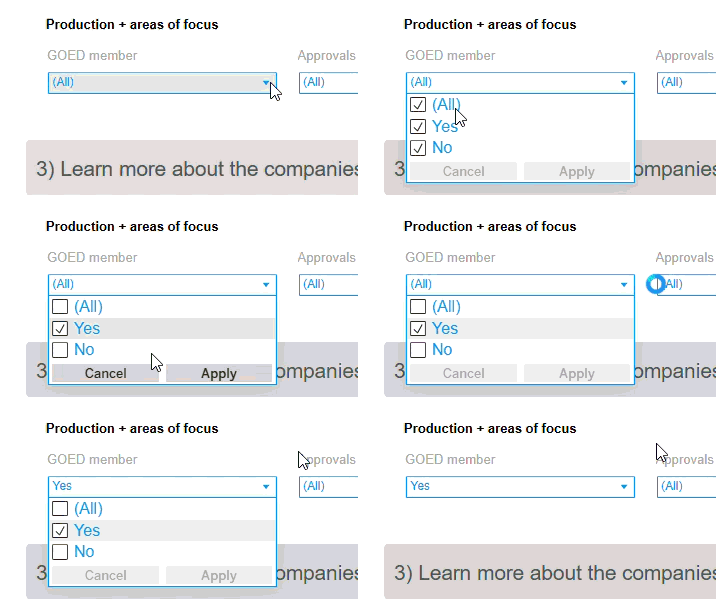 Use any combination of (1) "drop-down" filter menus and (2) headquarters country selectors to narrow the list of companies to those that interest you. When using a drop-down menu with checkboxes, click "Apply" in the bottom-right corner after making your selections to activate the filter (pictured at right).
Available filters for the currently available crude oil supplier segment include:
- Country of headquarters
- Whether the company produces crude omega-3 oil for human/pet consumption
GOED's assumptions about who supplies crude omega-3 oils were often corrected when researching. Where we confirmed a company does NOT supply crude for human/pet refining — perhaps supplying only to aquafeed or agricultural markets — we included that information to save users research time. We did not explicitly research those other markets, as they are outside GOED's general scope, so those aquacultural, agricultural or industrial entries are incidental rather than comprehensive.
We also marked companies that claimed to provide omega-3 oil and worked with higher EPA+DHA species but didn't specify whether the oil was crude or fit for human/pet cousmption as "Uncertain." - The company's crude oil source species
- The general EPA vs. DHA profile of the crude oil
Whether the oil is EPA- or DHA-dominant, balanced, or (for algae oils) whether it contains exclusively EPA, exclusively DHA, or a mix of both.
- The company's GOED membership status
- Approvals and certifications specific to the company's crude oil
This field excludes company-level certifications like ISO, GMP, etc.
- Known customer regions
This field is not exhaustive or exclusive — it simply notes when companies report having supplied or worked in a specific region.
- Average annual crude oil production in metric tons
3. Dive deeper into the information on specific companies.
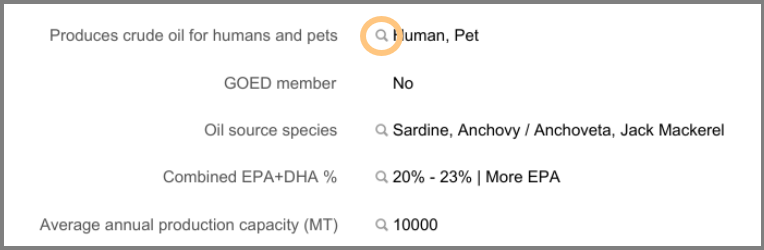
Once you have created a list of companies, click the magnifying glass icon (example circled below in yellow) next to any fact to pull up a pop-up window showing the source of that information, including clickable URLs when available.
These were the most common information source categories:
- Correspondence (emails or face-to-face conversations with company sources or other industry members)
- Marketing (quotations or context from company websites or other assets)
- Independent (mainstream journalism or other non-company communications)
- Certifiers (certification documents from MarinTrust, MSC, Friend of the Sea and others)
- GOED Directory (to confirm companies' GOED membership)
❓A value of [Not available] for any data point in this section means the information was requested by correspondence and/or sought online, but it was either proprietary or otherwise unavailable. Additionally, some fields were not pursued after learning early in the research process that the company does not supply omega-3 products in their given segment for human or pet markets.
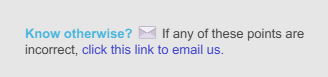 📝 Suggest a correction: Please notify GOED if you discover or suspect any incorrect information. In the pop-up window for any data point, click the hyperlink in the top-right-hand corner (pictured at right) to open an email to the GOED team, auto-filled with the correct email address, subject line, company name and sub-topic. This is an important part of maintaining this Navigator as a living resource for members.
4. Export a list of companies and information that match your filters.
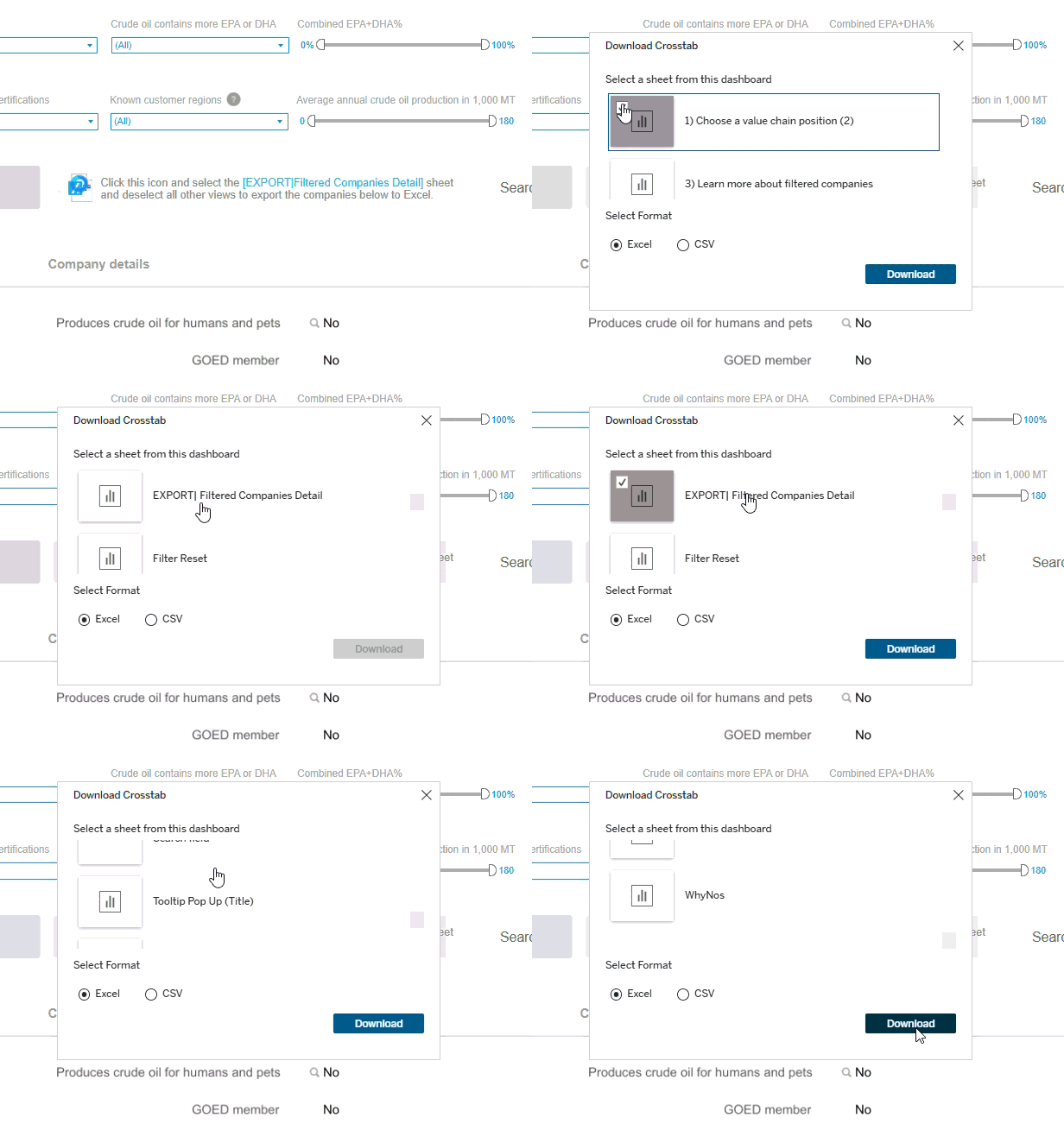 To export the information on the filtered companies into Excel, click the designated Excel icon next to "3) Learn more about the companies."
- A menu will invite you to select specific sheets for export. Select "[Export|Filtered Companies Detail]" and deselect any other sheets, then click Download (pictured at right).
5. Search for keywords for customized results.
- For quick, direct, simple searches that don't require filters, use the search box next to the Excel export button to search for specific company names, source species terms, approvals, countries and more.
- To reset the search bar without resetting all other filters, delete your text from the search field and hit return.
6. Reset filters and map selections.
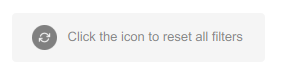 To start a new search, use the "Reset Filters" button to the right of the bar with "2) Filter [segment] producers by their attributes" and above the drop-down filters (pictured at right) to clear all previous selections from the drop-down menus, search bar, or country selector(s).
Additional Notes
- Optimized for Desktop: For the best experience, we recommend accessing the Supply Chain Navigator on a desktop computer rather than a mobile device.
- For Safari Users: Safari may block the authentication process. Disabling the “Prevent cross-site tracking” feature can resolve this issue.
- Tool tip Assistance: Tool tips are spread across the dashboard—hovering over icons and sections can provide additional guidance.
- User Guide: You can revisit these instructions any time by clicking the "User Guide for this Navigator" button in the header above the Navigator.
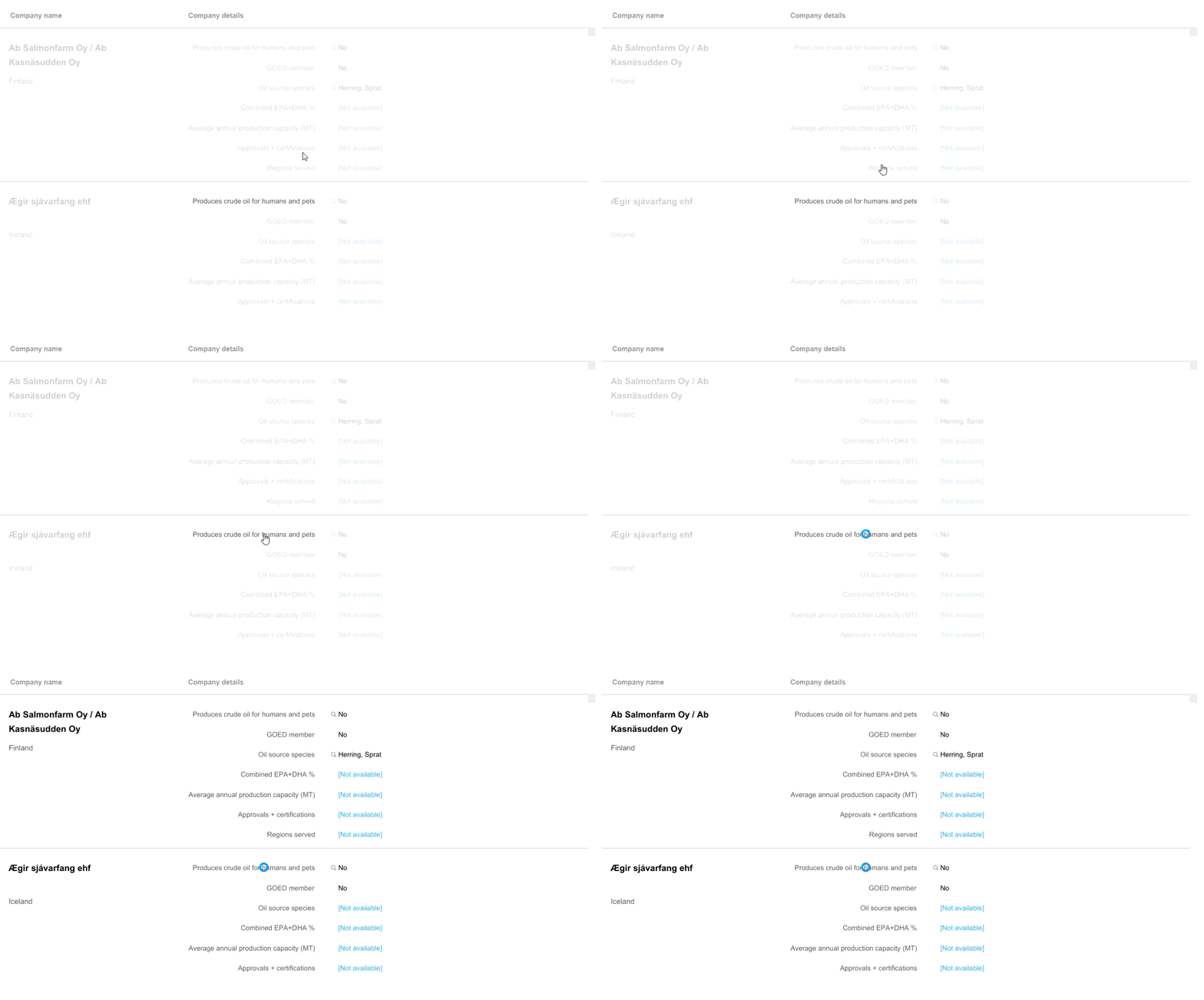
- Has Everything Gone Grey? If your company list turns faint or grey at any point, look for the last element you clicked, which will not be grey, and click it again to reset the view (pictured below).